Write-off configuration
One-time configuration, done after the connection — it applies to all following write-offs of this account. In Bling, the equivalent of Tiny's Destination Account are the Portador (holder) and Categoria (category) fields — and there is a step to find their ids (via DevTools).
Create the write-off configuration (export via API)
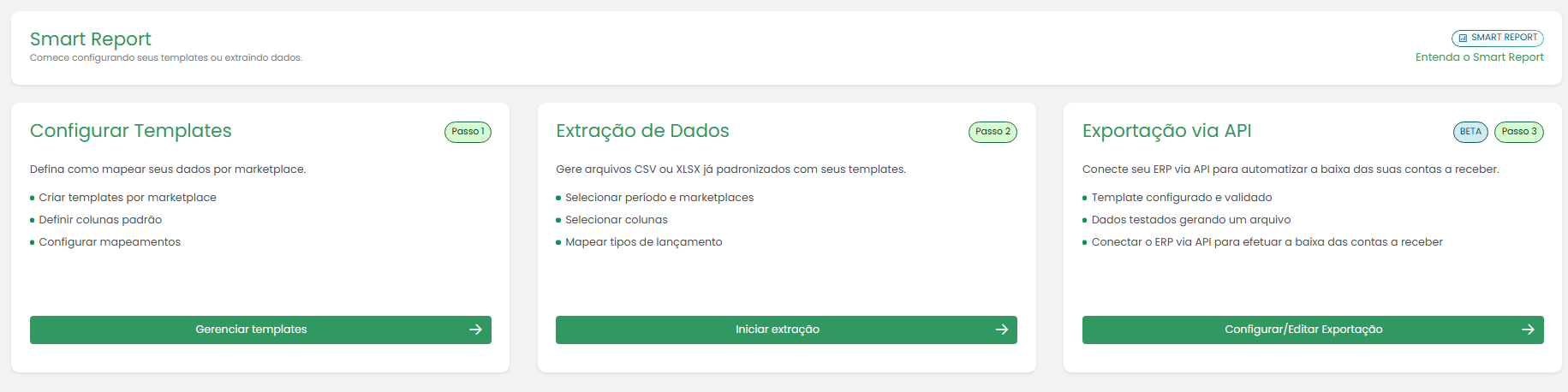
In Koncili, go to Smart Report and open the Export via API tab (third option). Click New configuration.
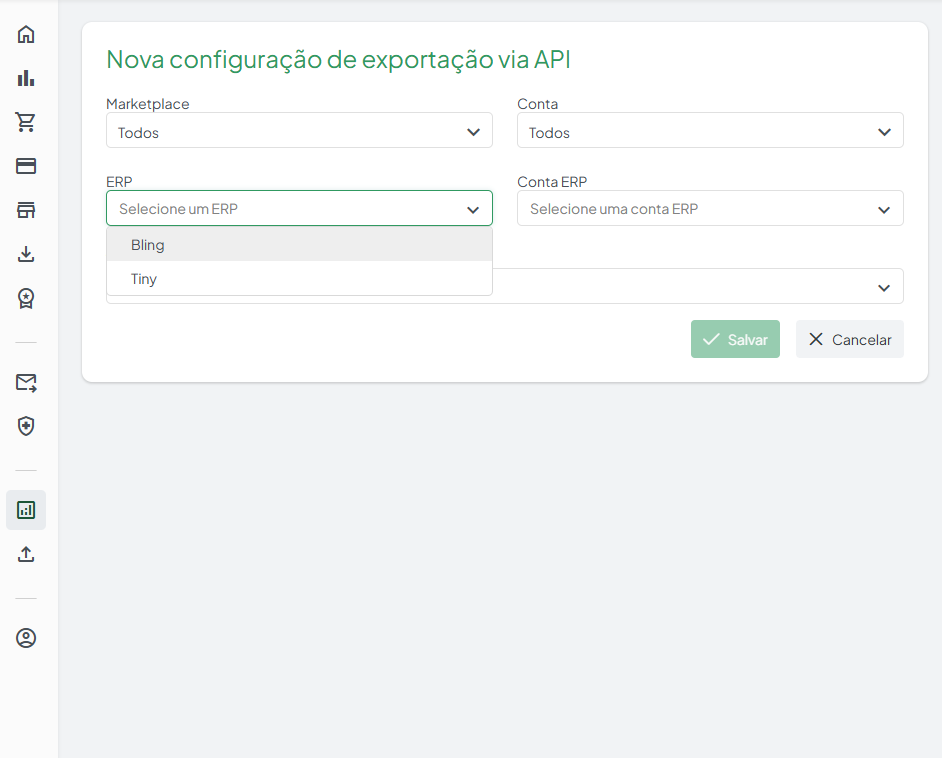
Fill in the fields: Marketplace, Account, ERP (Bling), ERP Account (created in Step 8) and Template.
Validate/adjust the export template
Before choosing the export template, let's validate/adjust the created template.
In Smart Report > Configure Template, filter by API: there are already two default templates created for Bling — one that considers the net value and another the gross value. Pick the one matching the account's operation.
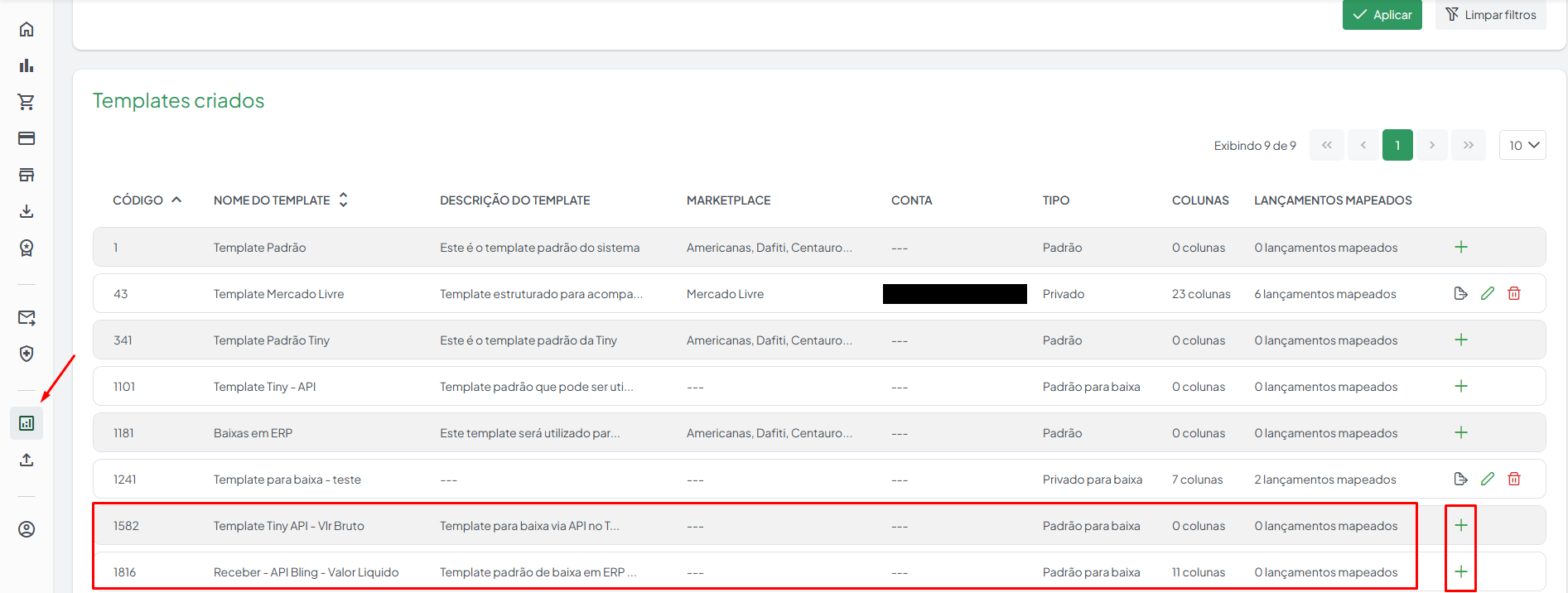
Click + to validate/edit the template.
The template columns are already predefined for Bling. Fill the PORTADOR (holder) and CATEGORIA (category) fields (clicking the pencil) with the Bling id in object format — {"id": <id>}. See how to get these ids in Step 11.
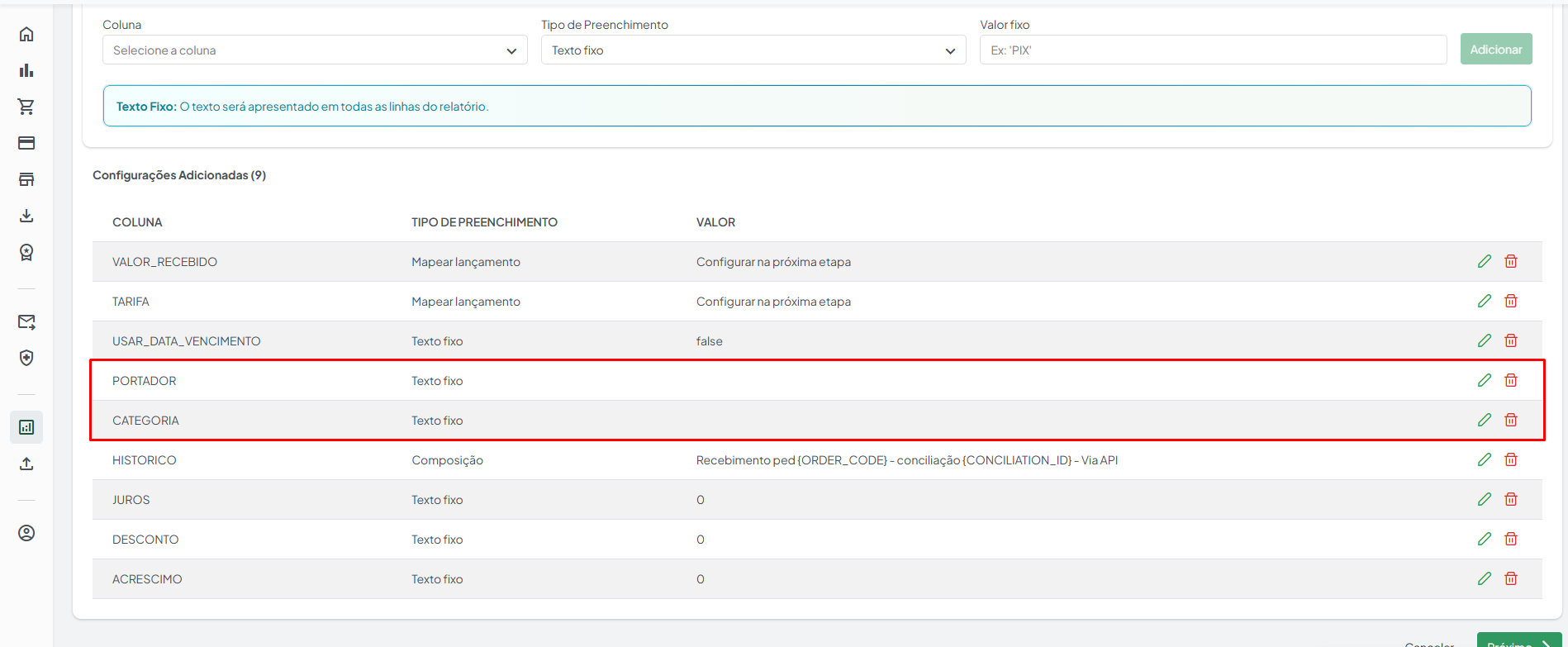
Once adjusted, save the template and use it in the Template field of Step 9.
Find the Portador (holder) and Categoria (category) ids in Bling
These ids are not shown directly on any Bling screen. To get them, use the browser DevTools (F12).
In Bling, go to Finance > Accounts receivable and open an accounts-receivable entry of an already integrated order.
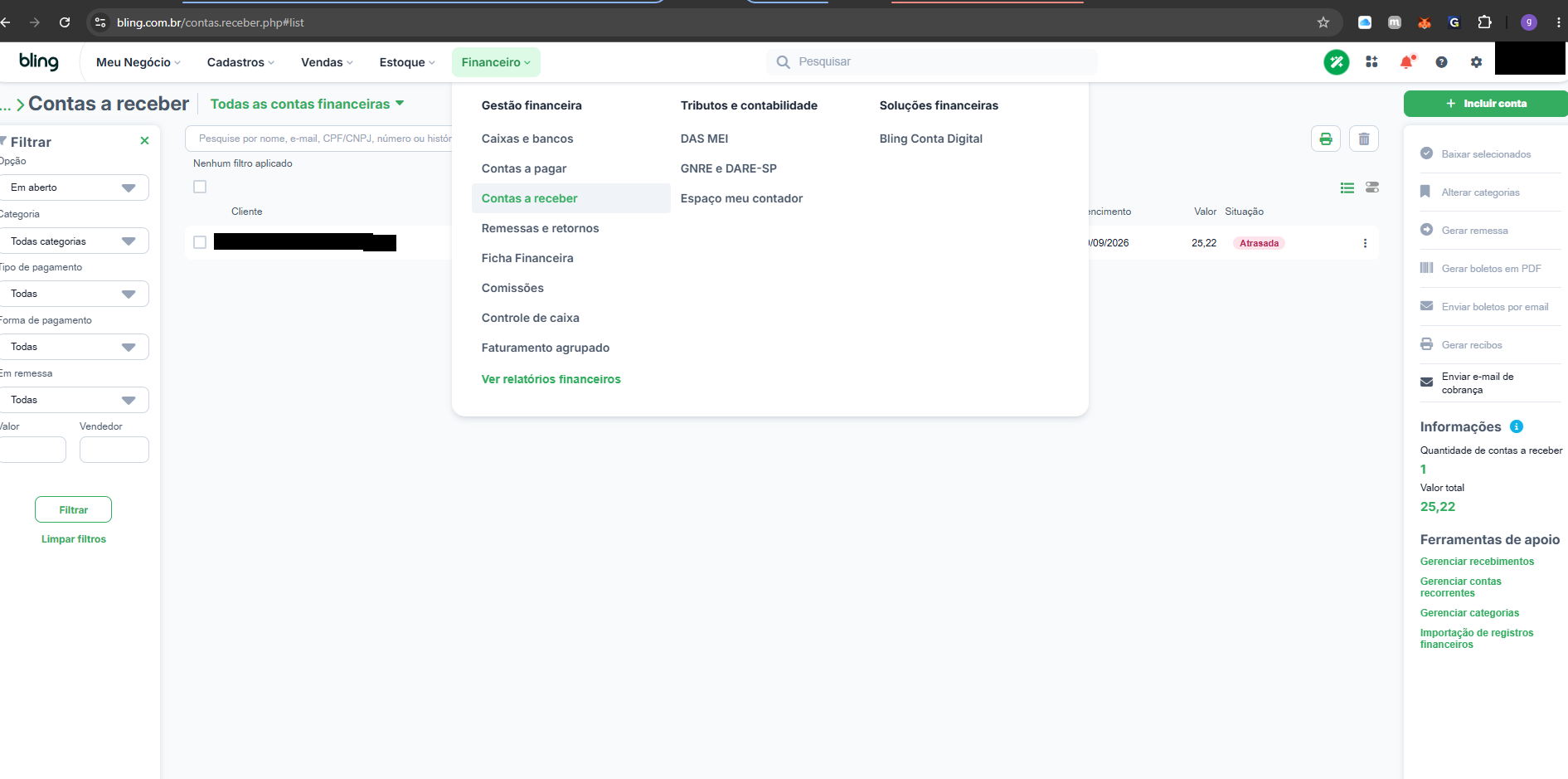
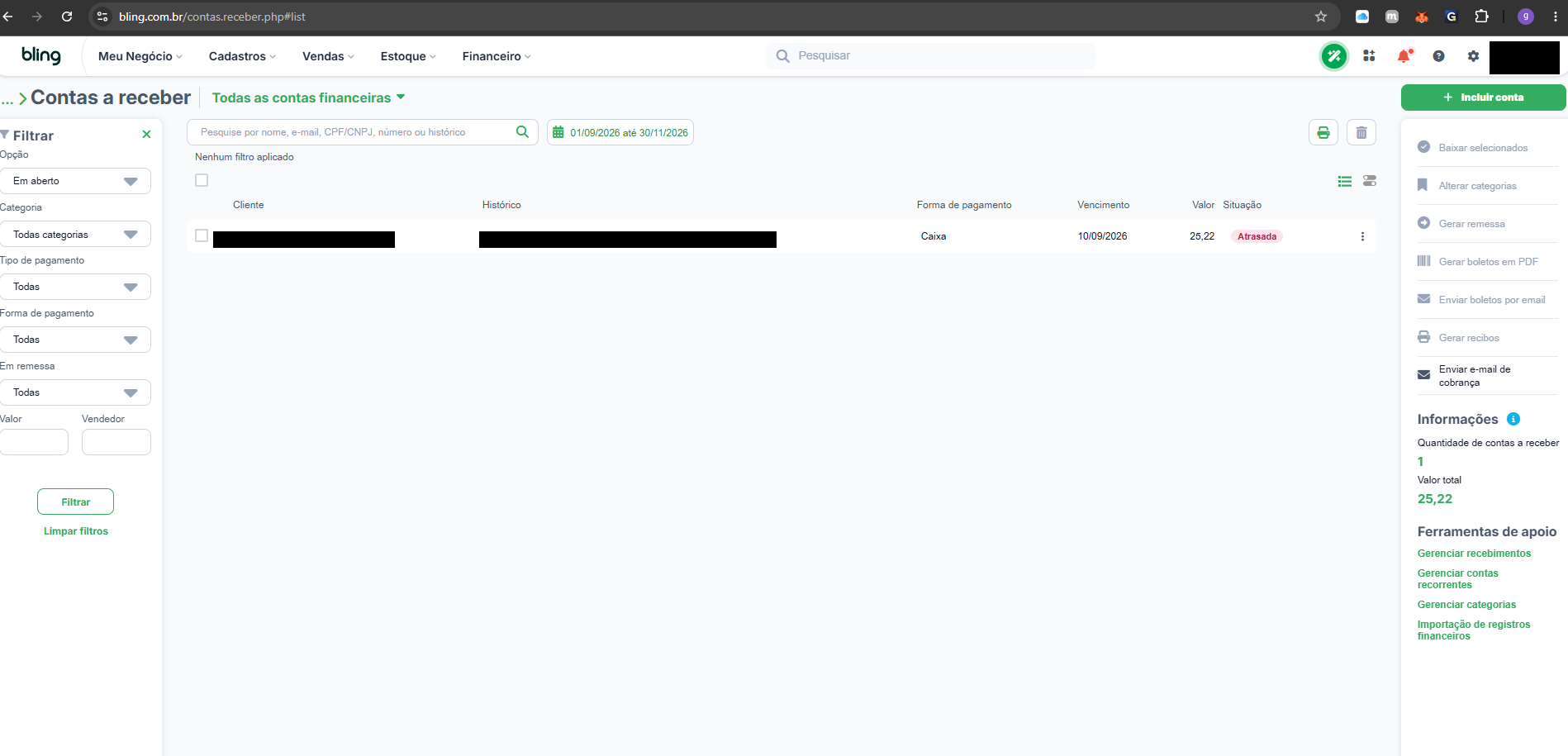
With the screen open, open DevTools (F12), go to the network tab, open the entry to trigger the request and open the accounts-receivable response. In it, copy the idPortador and idCategoria values.
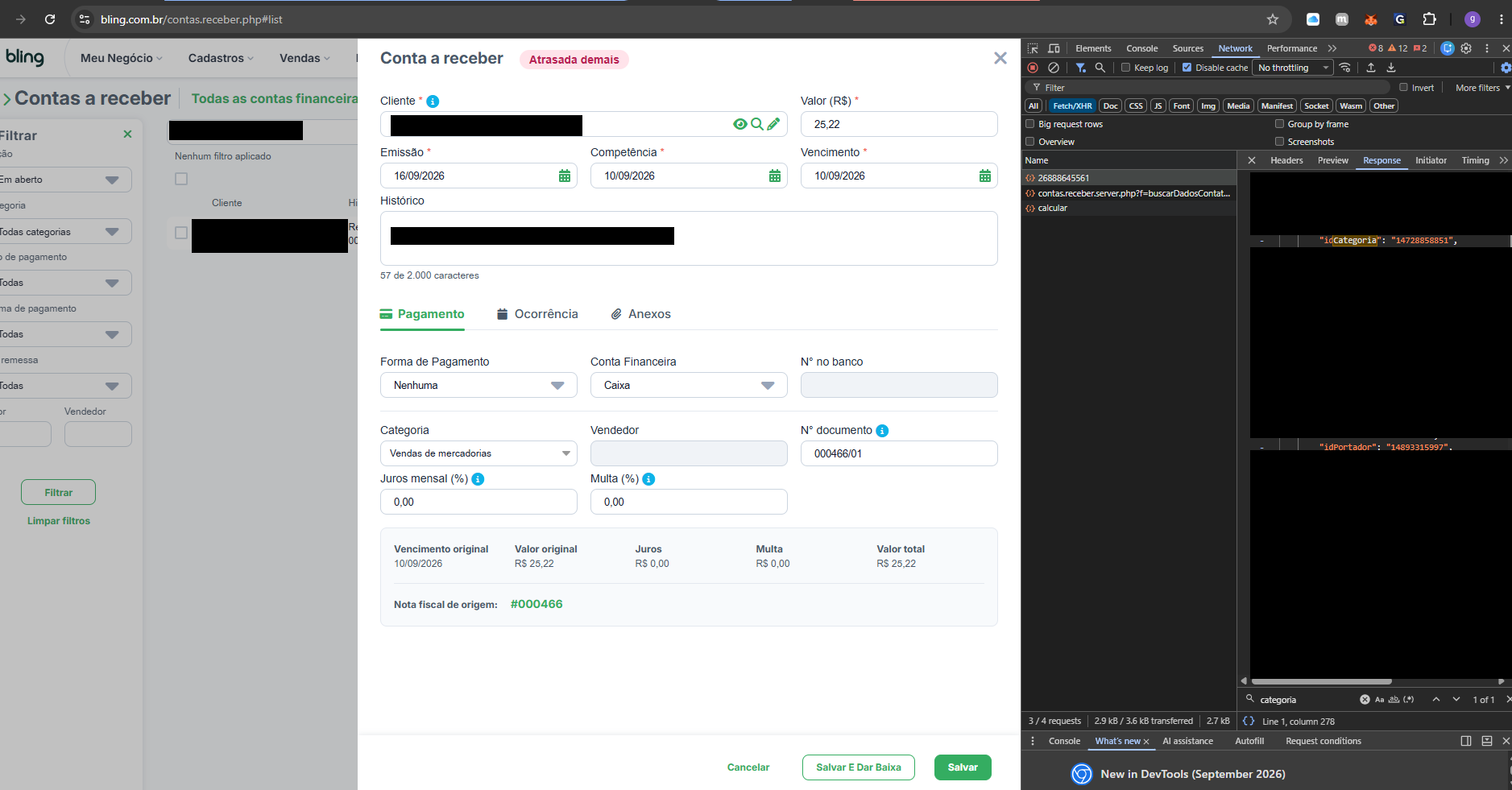
Go back to the template (Step 10) and fill PORTADOR and CATEGORIA in object format, with the copied id: {"id": <idPortador>} and {"id": <idCategoria>} — for example {"id": 14893315997}.