Important limitations
Read carefully before enabling automatic write-off for a customer — the process is new (beta) and has specific behaviors. New features will be added in upcoming versions.
Asynchronous process
Olist/Tiny's API limits sending to about 30 receivables per minute. In large reconciliations the process may take several minutes (e.g. 300 orders ≈ 9 send batches).
No progress bar
After clicking "Send to ERP", there is no progress indicator on the screen — only the disabled button shows it has been sent. Validation of what was written off is done afterwards, in Smart Report: through the tag icon in the reconciliation list (step 8) and the "Show integration data?" option when exporting the report (step 9).
Orders without ID are not written off
Entries without the accounts receivable identifier in Koncili are automatically left out of the send.
Accounts Receivable history field
The accounts receivable history field must contain the marketplace order number and follow the OC nº [number] pattern. Examples: OC nº 20000XXXXXXXX970, OC nº LU-131XXXXXXXXXXX801, OC nº 260XXXXXXXXX28.
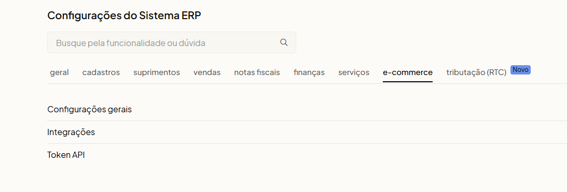
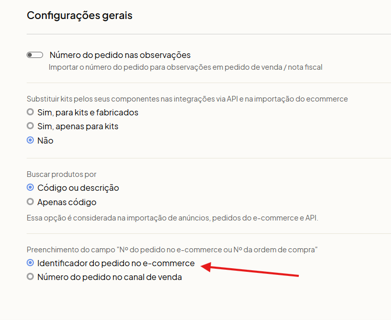
If the history is not showing the marketplace order number, go to Settings > ERP Settings > e-commerce > General Settings and check the Identificador do pedido no e-commerce (e-commerce order identifier) option. Note: accounts receivable already posted are not updated.
Write-off of installment orders
For now we do not write off installment orders. Ideally, configure Olist/Tiny to generate a single installment for the sale when the payout is made in a single payment. If the payout is paid in installments, the integration is not yet prepared to do the write-offs automatically — in those cases a manual write-off is required.
Refund without a matching sale is not written off
If the reconciliation has the refund but not the sale, the report line is not generated (the mapping depends on the sale) and therefore the entry is not written off.
Negative values are not sent
If the amount to write off results negative, Koncili does not generate that entry — Olist/Tiny's API only accepts positive values.
Value divergence blocks the write-off
If the sale amount in Olist/Tiny differs from the amount in Koncili, the entry is not written off and creates a divergence occurrence in the log that can be viewed in the Smart Report report.
Beta feature
The process is new, is being tested, and will receive adjustments and improvements as it is used. In Smart Report, the reconciliation list already indicates with an icon when a reconciliation has been sent to the ERP, and the Extract data report can already include the write-off status per order (step 9); other changes will be available in future versions.