Tracking and validation
Steps 7, 8 and 9: how the team actually triggers and validates the write-off, after the account is connected and configured.
Send the write-off to Olist/Tiny
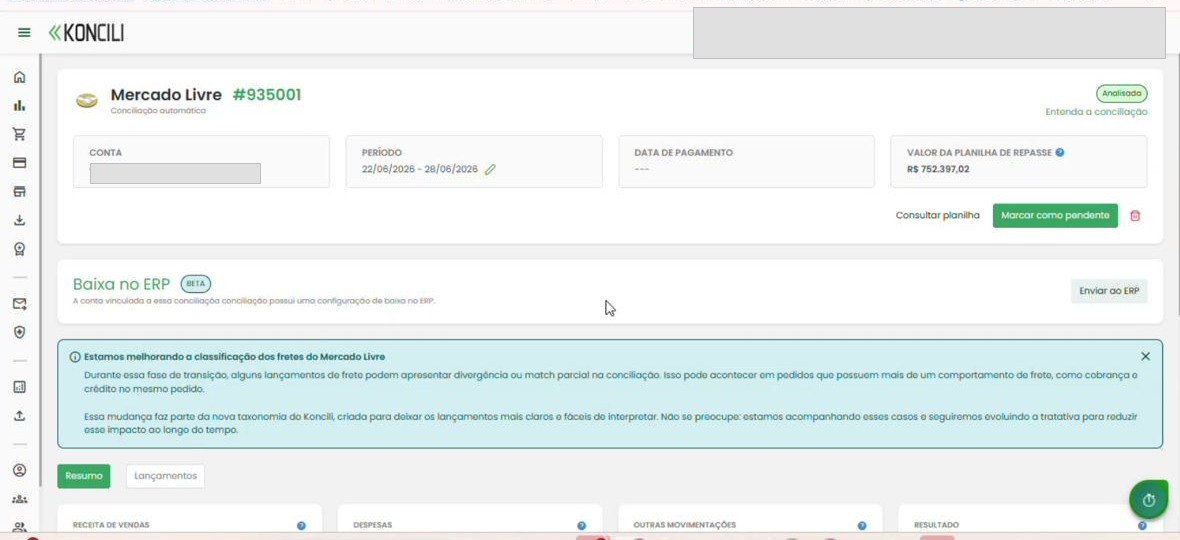
On the Reconciliation screen, open the desired reconciliation. If steps 1 to 6 are complete, the Write-off in ERP section appears with the Send to ERP button.
On click, Koncili builds the export of the reconciliation entries and tries to write off each item in Olist/Tiny.
After sending, the button is disabled to avoid sending the same reconciliation twice.
Track in Smart Report
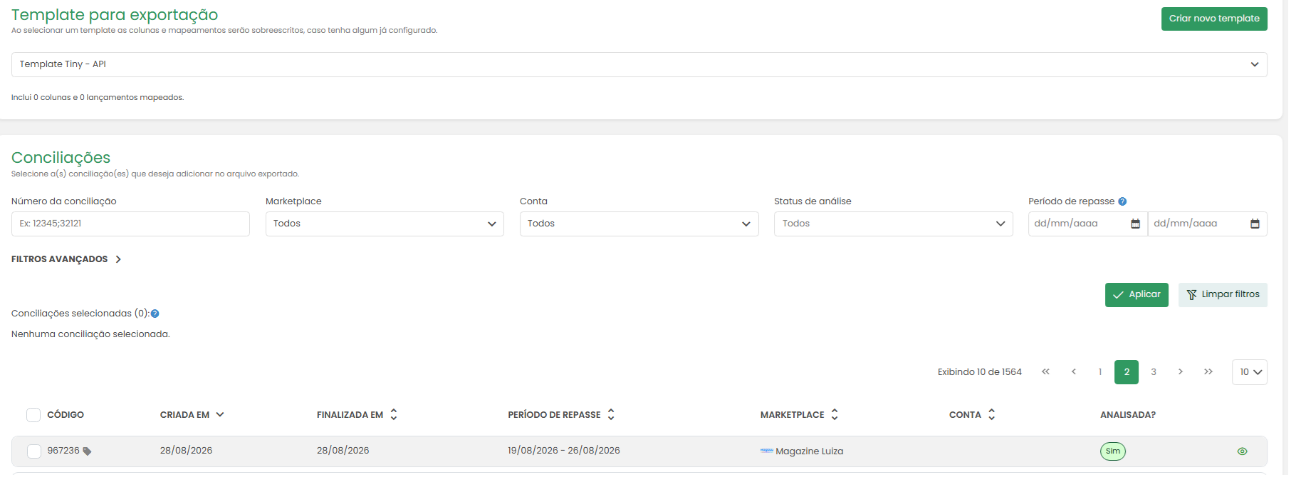
In Smart Report, select the same template used in the write-off configuration (step 4). This way you see exactly the values sent to Olist/Tiny.
If you prefer to use another template, you must ensure the column mapping is configured the same way — only then do the displayed results stay equivalent to what was sent.
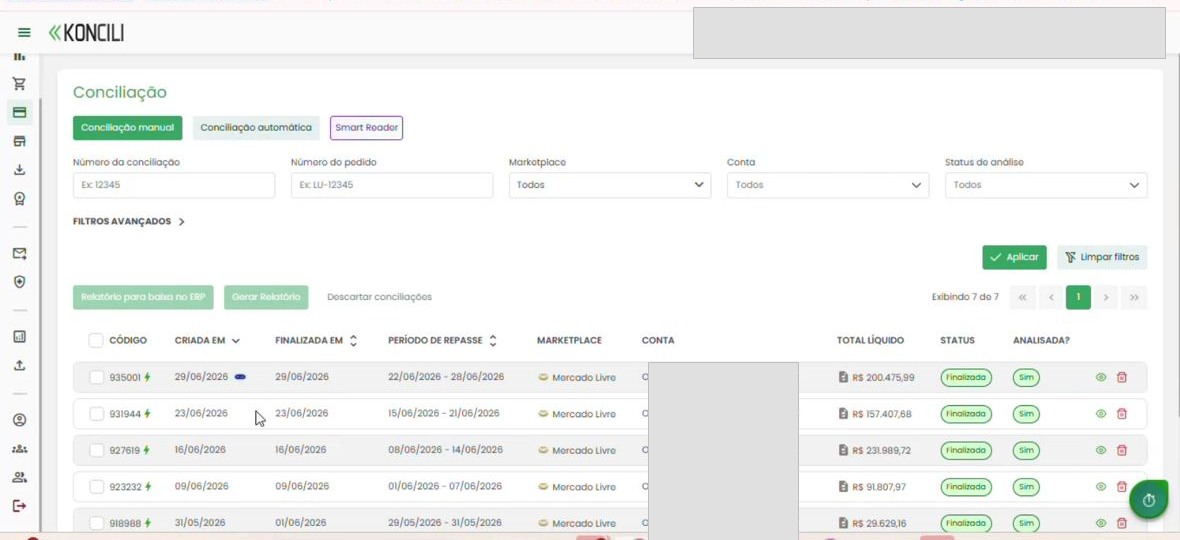
In the reconciliation list, the tag icon next to the code indicates when a reconciliation has already been sent to the ERP.
Validate the status in the data export
When exporting the report, check the Show integration data? option.
With that, the file includes the write-off status per order, plus date and time, letting you validate what was processed for the ERP.
When needed, also check Remove canceled orders? so canceled items are not sent in the batch.
Extrair dados
Se a opção for selecionada, os valores das colunas customizadas serão sempre positivas.
Se marcado, os pedidos cancelados da(s) conciliação(ões) selecionada(s) não serão listados no relatório.
Adiciona ao relatório, por pedido: se foi baixado, data e hora da baixa e status da integração com o ERP.