Linking receivables
Koncili needs to know which accounts receivable entry, in the ERP, corresponds to each order — today this link is not discovered automatically. You must import this relationship manually whenever there are new orders without a link.
1. Export the accounts receivable in Olist/Tiny
Before importing into Koncili, export the accounts receivable spreadsheet straight from Olist/Tiny.
In Olist/Tiny, go to Finance > Accounts Receivable and filter the open entries (you can filter by payment method, period and others).
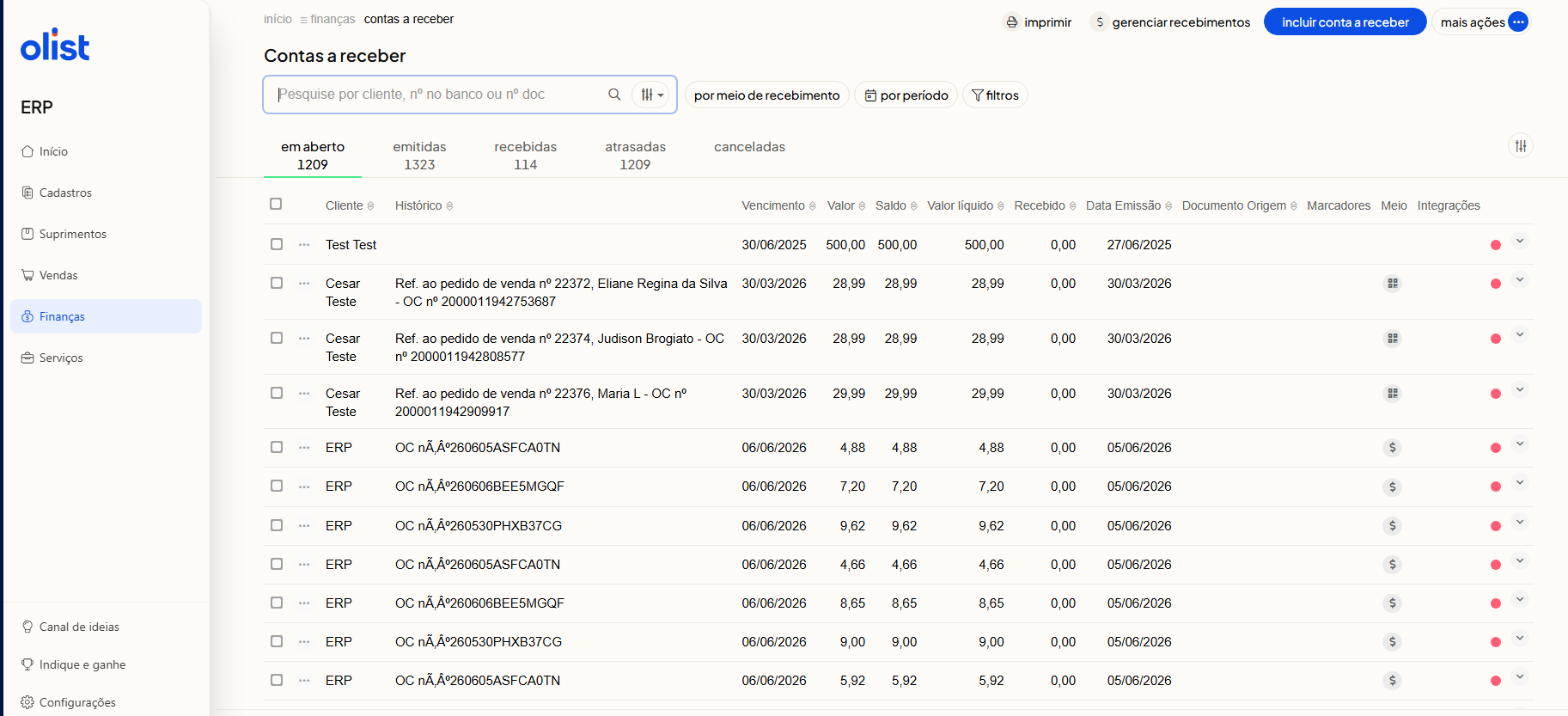
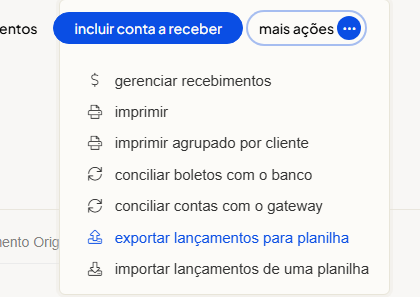
Click more actions, in the top-right corner, and choose export entries to spreadsheet.
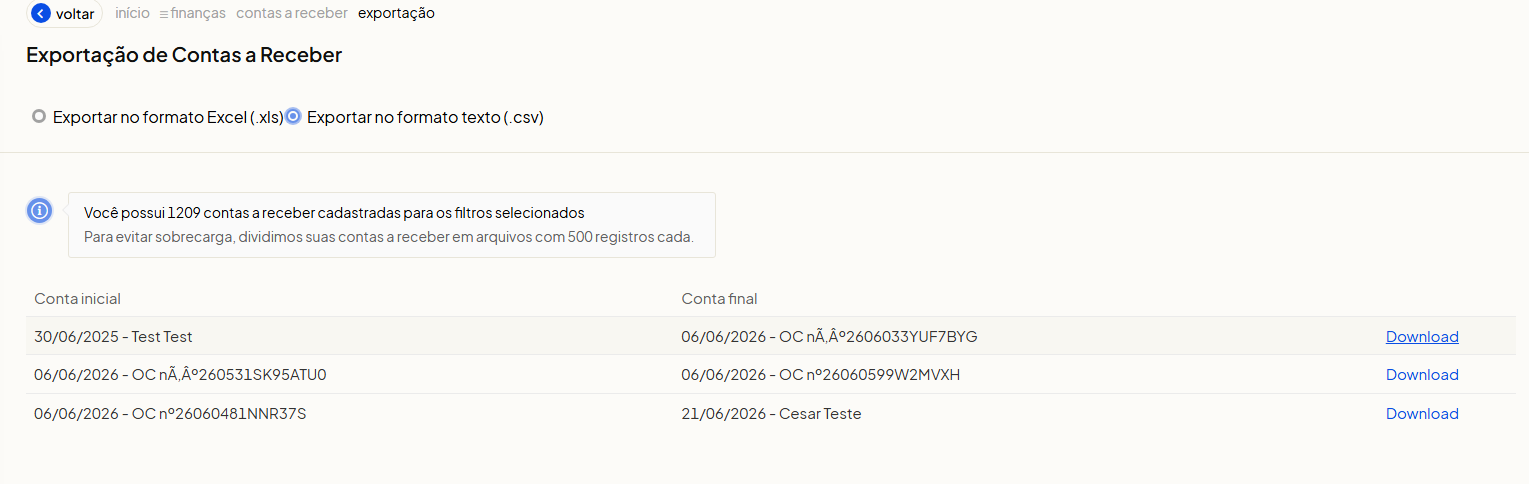
On the export screen, select Export in text format (.csv) and click Download to get the file.
2. Open the Import area
In Koncili's side menu, go to Tools > Import.
Side menu → Tools → Import
3. Choose Accounts receivable
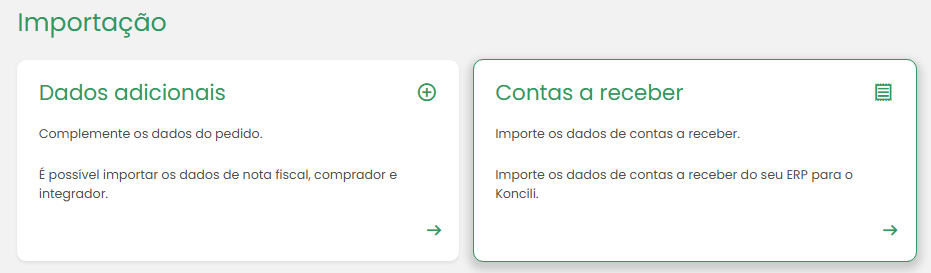
On the import screen, select the Accounts receivable card. This is the flow used to link an order and an ERP receivable.
4. Start a new import
In the Accounts receivable list, click New import.
If needed, use the screen filters (ID, ERP, status and period) to check previous imports.
Contas a receber
Nova importação5. Select the ERP and upload the file
In New import, select the Olist/Tiny ERP, upload the .csv file with the order↔receivable link and click Start import.
The limit per file is 15MB.
☁
Arraste e solte o(s) arquivo(s) aqui ou selecione.
São permitidos os formatos: .csv. O tamanho máximo permitido é de 15MB por arquivo.